 Posted by
By Oretta Croushore, Property Manager for Home Rental Services
Portal (n.) por-tal
1 : door, entrance, especially a grand or imposing one
2: a website serving as a guide or point of entry to the World Wide Web
3: the magical land your property manager told you about
Hello there! My name is Oretta, and I will be your guide into the magical land that is the Home Rental Services Owner Portal. Please, climb aboard your favorite mythical creature and follow me. My unicorn, Gradella, and I can’t wait to show you around. Please buckle your seat belt and keep your arms and legs inside the creature at all times.
Getting to the Owner Portal
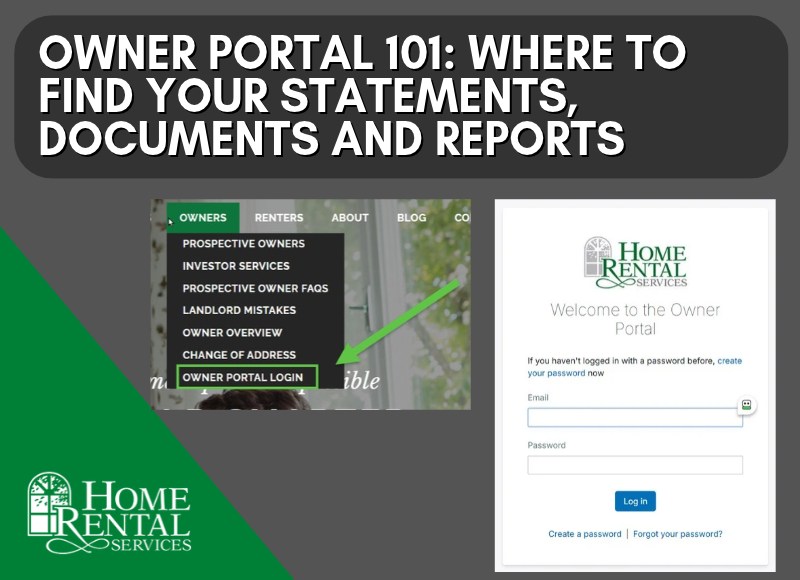
First, how do we get there? The fastest way is a direct flight from right here. You can also take the scenic root by heading to Home4Rent.com, click on Owner, then Owner Portal Login. Once you get there, don’t forget to bookmark the page. Your username is your email address. In the unfortunate incident that you have forgotten that very clever password you created, fret not. Help is just a click away by using the forgot password button. (There is no shame in resetting your password. It happens to the best of us. Remember, PassWord is not a good password. You are better than that.)
Two-factor Authentication is a Good Idea
Appfolio, the software powering the Owner Portal, encourages the use of two-factor authentication. Two-factor authentication (2FA) adds a second layer of security to your online accounts. A password alone isn’t enough to get in. After entering your password, you also confirm your identity with something only you have, like a code sent to your phone, a prompt in an authenticator app such as Google Authenticator or Microsoft Authenticator, or a physical security key. This matters because passwords get stolen all the time through data breaches, phishing emails and reused logins.
With 2FA turned on, a hacker who has your password still can’t access your email, bank account or business tools without that second factor. It takes only a few minutes to set up and adds a few seconds to your login. It’s one of the simplest and most effective ways to protect your personal information, your finances and your business from cybercriminals. (We can reset your password or 2FA for the Owner Portal on our end so if you need assistance, just let us know.)
There are five main areas of the owner portal. We will be visiting each of these ports of call on our journey. On a desktop, the tabs are located on the left side of the screen.
Packets (formerly Statements)
This is the tab you will probably visit the most.
Your monthly owner statement is published here. You can access your current statements or go back and look at ones from past years. You should receive an email to let you know when the statement has been published. We typically publish them the day before owner disbursements show in your bank account.
I’m often surprised by the number of owners who tell me they never look at their statements. This is where you will find a detailed explanation of the income and expenses for your rental property for a given month. The statement also shows any outstanding bills. These are invoices which were unpaid due to lack of funds in the account. If your statement shows “please remit balance due” then a contribution is needed for your account.
At the beginning of the year, there is a special statement everyone needs for taxes. It’s the cash flow statement. It likes to disguise itself as just another monthly statement. “Nothing special about me”, it says. Look for the descriptor includes cash flow – 12 month.
Transactions
Next stop, Transactions. At the top of the screen, you see two boxes. One shows the last disbursement and the other shows the last contribution. You will also see one of my favorite places of interest in this land. The Make a Contribution button.
When you need to add money to your account, either to pay an outstanding balance on your statement or to fund a project, this is the best and easiest way to do that. Click that button and the system will walk you through the steps.
If you make a payment with an echeck, where you enter your account and routing number, there is no charge. Debit and credit card transactions are charged a fee by the company processing those payments. Once you make a contribution, the property manager gets an email notification.
We encourage all owner contributions to be made through the portal. Between postal service delays, processing of the mail, and depositing, an old school mailed check can take 2-3 weeks before the funds are available. It’s very much the same reason we strongly encourage all rent payments to be made through the renter portal. It’s available 24/7/365 and there’s no delay.
The transaction tab also shows a table of all disbursements and contributions in and out of your account. It gives you some at a glance information to help keep you from opening every statement to find what you’re looking for.
Documents
Next, we head to the tropical isle of Documents. Here you will find all shared documents.
The 1099s will be found here. All owner 1099s are shared through the portal. They are in PDF format and can be easily downloaded to either print or email with your tax professional. Paper copies of the 1099 are also mailed to those who have not opted to receive electronic files only. If you are still getting a paper 1099, please choose to switch to electronic only. We would love to reduce the amount of unnecessary paper going out into the world and also lessen the resources required to mail them.
The other notable items you will find in the documents tab are leases, lease extensions, management agreements, and the owner handbook. You never need the lease until you need the lease. It’s usually when you are trying to take care of business like refinancing. The owner handbook can be an awesome resource for quick information on processes and such.
Reports
The reports tab is a new private island just for our clients. This gives you some autonomy to gather information about your portfolio without having to request it from your PM.
- Cash flow and cash flow 12 month – Cash flow lets you run the report for a certain time period where cash flow 12 month runs it for one year.
- Income Statement and Income Statement 12 month – find the total operating income, expenses, and net operating income for the month. 12 month shows the same information for a year
- Lease Expiration Detail – View the expiration of every lease across your portfolio.
- Rent Roll – See monthly rent, lease dates, move-in dates, etc.
Properties
At a glance snapshot of each of your properties. See rental status, lease dates, and rent amount.
Contribution
You can go directly to this destination to make a contribution to your account. It takes you to the same place as the make a contribution button in the transactions tab.
Approvals
This area is not in use by HRS.
Owner Portal Settings
Please note in the upper right corner of the Owner Portal, you will see your email address and a little drop down arrow. Click on that arrow and you can access the settings menu. Here you can change your password, change your 1099 settings to opt out of paper delivery, see your bank account information.
In the near future, we hope you will have the option to update your bank account information here as well. Currently, if you need to change your bank account or mailing address, please contact us at propertymanagers@home4rent.com.
That brings us back to the home port, where we started. I hope you have enjoyed this journey. The owner portal is happy to host you anytime you need it!

